

How to Ping a Website Online for Free in 2026 (And What the Results Actually Mean)
Is that website down — or is it just you? A ping test tells you in 3 seconds.

It was a Monday morning. A developer I know messaged me in a mild panic: "Our client's website is down. I'm getting a connection timeout. I need to know if it's the server or something on my end before I call the hosting company."
I sent him one link. He ran a ping test. The result came back in seconds — Online, 58ms response time. The website was perfectly fine. The problem was his own network — his office firewall had blocked the domain.
That one ping test saved him an embarrassing support call and about an hour of unnecessary debugging.
Knowing how to ping a website is one of those simple skills that pays off disproportionately. Whether you're a developer, a site owner, or just someone trying to figure out if a website is actually down — this guide covers everything you need to know.
Quick Answer — What Does a Ping Website Tool Show You?
A ping website tool checks whether a domain is reachable from the internet and measures how fast it responds. A full result shows:
Status — Online or Offline
Host — the domain you pinged
IP Address — the server IP the domain resolves to
Response Time — how long the server took to respond (in milliseconds)
Location — the geographic location of the server
ISP — the hosting provider or network operator behind the IP
Results appear in seconds. No installation. No command line. Completely free.
What is Pinging a Website?
In networking, a ping is a signal sent from one device to another to check if it's reachable and measure how long the round trip takes. The name comes from sonar — just like a submarine sends out a sound pulse and listens for the echo, a ping sends a small data packet and waits for a response.
Traditionally, ping was a command-line tool. You'd open Terminal or Command Prompt and type:
ping google.com
And you'd get back lines of data showing response times and packet loss. Useful — but not the most accessible thing for non-technical users, and also limited because it only tests from your own machine.
An online ping tool does the same thing from a server on the internet — which is actually more useful in most cases. When you ping a website from your own connection and get no response, you can't tell if the site is down globally or if your local network is the problem. An online ping tool removes that ambiguity entirely.
Why Pinging a Website Actually Matters
Checking if a site is globally down vs just you. This is the #1 use case. If a website won't load for you, an online ping instantly tells you whether the server is responding from the internet's perspective. If it pings fine but won't load in your browser — the problem is on your end (DNS, firewall, ISP, browser cache).
Measuring server response time. Response time in milliseconds tells you how fast a server is reacting. A 50ms response is excellent. A 500ms response is sluggish. Anything above 1000ms (1 second) suggests serious latency or server issues. This is a quick health check before deeper performance testing.
Verifying a server is up after changes. After a deployment, server migration, or DNS update — a quick ping confirms the server is live and responding before you announce the change to users.
Monitoring uptime during incidents. When a site is experiencing issues, running periodic pings gives you a real-time sense of whether the server is intermittently dropping or fully offline.
Finding the server IP and location. The ping result shows the IP address the domain resolves to and the geographic location of the server — useful context for hosting research and latency analysis.
How to Ping a Website for Free — Step by Step
The fastest and most user-friendly way is using a free online ping tool that checks any website from the internet and returns status, response time, IP, location, and ISP in seconds.
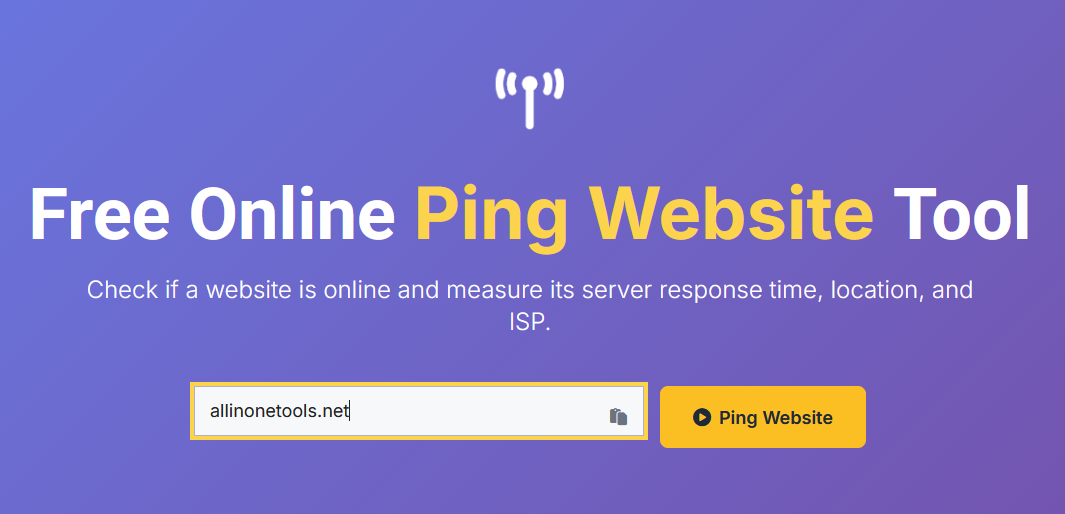
Step 1: Go to allinonetools.net/ping-website-tool/
Step 2: Type any domain into the input field — for example: yourwebsite.com or competitor.net
Step 3: Click the green "Ping Website" button
Step 4: Within seconds, the result card appears with everything you need
Here's what a typical result looks like:
✅ Online

Host            →  yourwebsite.com
IP Address      →  103.21.244.0
Response Time   →  58 ms
Location        →  Singapore
ISP             →  Cloudflare, Inc.
Clean, instant, and unambiguous. The large "Online" status with a green checkmark (or "Offline" with a red indicator) tells you the answer at a glance — before you even read the details.
No sign-up. No installation. No command-line knowledge needed. Just a domain and a click.
Understanding the Ping Results — What Each Field Means
Status (Online / Offline) — The headline result. Online means the server responded to the ping request. Offline means no response was received within the timeout window. Note: some servers are configured to block ICMP ping requests for security — a "no response" doesn't always mean the site is truly down (more on this below).
Host — The domain you entered. Confirms you pinged the right address.
IP Address — The server IP the domain currently resolves to. Cross-reference this with your Domain to IP Converter if you want to see all IPs associated with the domain, including IPv6.
Response Time (ms) — The most technically informative field. Measured in milliseconds — how long it took for the server to respond. Here's a practical reference:
| Response Time | What It Means |
|---|---|
| Under 50ms | Excellent — fast server, low latency |
| 50–150ms | Good — normal for most web servers |
| 150–300ms | Acceptable — may indicate geographic distance |
| 300–600ms | Slow — worth investigating |
| 600ms+ | Poor — server under load or serious latency issue |
| No response | Server offline, blocking pings, or major connectivity issue |
Location — The city and country where the server IP is registered. Useful for understanding latency — a server in Singapore will have higher response times for users in Europe than one in Frankfurt.
ISP — The hosting provider or network operator behind the IP. If you see Cloudflare, the site uses Cloudflare's CDN. If you see AWS, Google Cloud, or a traditional host like Hostinger or SiteGround — that's the infrastructure the site runs on.
Online Ping Tool vs Command Line Ping — Which Should You Use?
Both have their place. Here's the honest comparison:
| Feature | AllInOneTool | Command Line Ping |
|---|---|---|
| Tests from internet | ✅ Yes — from a server | ❌ No — only from your device |
| Shows if site is globally down | ✅ Yes | ❌ Can't distinguish local vs global |
| No installation needed | ✅ Yes | ❌ Must use Terminal/CMD |
| Shows IP + Location + ISP | ✅ Yes | ❌ Basic output only |
| Continuous ping (multiple packets) | ❌ Single check | ✅ Yes |
| Works without internet on your end | ❌ No | ✅ Yes (local network only) |
| Best for | Quick global status check | Deep local network diagnostics |
The key difference: An online ping tool tests from the internet — telling you if the world can reach the site. A command-line ping tests from your machine — telling you if you can reach the site. Use both together for complete diagnosis.
"The Site is Down" vs "It's Just Me" — How to Tell
This is the most common reason people use a ping tool. Here's the exact decision tree:
Scenario 1 — Online ping returns "Online" but site won't load in your browser → The server is up. The problem is on your end. Check:
Clear your browser cache
Try a different browser
Check your DNS settings
Disable VPN if active
Check if your ISP is blocking the domain
Scenario 2 — Online ping returns "Offline" → The server isn't responding globally. This is a real outage. Check:
Is the hosting provider having an incident? Check their status page
Did the domain expire? Use the Domain Age Checker to verify expiry date
Did DNS change? Use the DNS Lookup Tool to verify records
Scenario 3 — Response time suddenly much higher than usual → Server is up but struggling. Likely causes: traffic spike, server overload, hosting issue, or a DDoS attack in progress.
Scenario 4 — Intermittent results (sometimes online, sometimes not) → Server instability. Contact your hosting provider. This is not a DNS issue — it's a server reliability issue.
What If the Ping Shows "Offline" But the Site Loads Fine?
This happens more often than you'd expect. Some servers and CDNs are configured to block ICMP ping requests — the specific type of network packet that ping tools use. Security-conscious administrators sometimes disable ping responses to reduce their attack surface.
If a ping returns offline but you can load the site in your browser — the site is up. The server is just ignoring ping requests.
In this case, the more reliable check is an HTTP status check rather than an ICMP ping. The ping tool at allinonetools.net handles this gracefully — it attempts to reach the server and reports based on actual connectivity, not just ICMP responses.
Ping Tool: Free Tool vs Paid Monitoring Services
| Feature | allinonetools.net/ping-website-tool/ | Paid Uptime Monitors (UptimeRobot, Pingdom) |
|---|---|---|
| Cost | ✅ Free | ❌ Free tier limited / paid for full features |
| Sign-up needed | ❌ No | ✅ Yes |
| On-demand check | ✅ Yes | ✅ Yes |
| Automatic monitoring | ❌ No | ✅ Yes |
| Alert notifications | ❌ No | ✅ Yes (email, SMS, Slack) |
| Response time history | ❌ No | ✅ Yes |
| Shows IP + Location + ISP | ✅ Yes | Sometimes |
| Best for | Instant on-demand checks | 24/7 automated monitoring |
Bottom line: For a quick "is this site up right now?" check — the free tool is perfect and requires nothing. For automated 24/7 monitoring with alerts — paid services add real value. Most serious site owners use both.
Common Mistakes When Using Ping Tools
Assuming "offline" always means the site is down. As explained above, servers can block ICMP requests. Always try loading the site in a browser as a secondary confirmation.
Ignoring response time trends. A single ping result isn't very meaningful. If your site normally responds in 60ms and suddenly shows 450ms — that's a signal worth investigating, even if status shows "Online."
Only pinging from your own machine. If you only use the command-line ping from your computer, you can't tell if the problem is global or local. Always verify with an online tool.
Not checking after DNS changes. After updating DNS records, ping the domain to confirm it's resolving to the correct new IP. Cross-reference with the DNS Lookup Tool for full confirmation.
Forgetting to check the IP in results. If the ping result shows an unexpected IP address — different from what you configured — DNS may not have fully propagated yet or there's a misconfiguration worth investigating.
Pro Tips for Getting the Most Out of Ping Results
Baseline your response time. Ping your site on a normal day and note the response time. Then when something feels slow later, you have a reference point to compare against.
Check competitor response times. Ping your main competitors and note their response times. If they're consistently faster than you, that's a signal your hosting infrastructure may need an upgrade — server speed is a real SEO and UX factor.
Use it immediately after a server migration. The first thing to do after moving a site to a new server is ping it. Confirms the domain is resolving to the new IP and the server is responding. Pair with Hosting Checker to confirm the new host shows up correctly.
Check location vs your target audience. If your server location shows Singapore but your primary audience is in the UK, your users are experiencing unnecessary latency. A CDN or server closer to your audience would improve performance.
Combine ping with SSL and hosting checks. A complete site health check uses ping for uptime, SSL Checker for certificate validity, and Hosting Checker for infrastructure. Three free tools, complete picture, under 2 minutes.
Semantic Context — Related Concepts Worth Knowing
ICMP (Internet Control Message Protocol) — The network protocol that traditional ping uses. ICMP echo requests are sent to the target, and ICMP echo replies come back. Some firewalls block ICMP traffic, which is why a ping can show offline while the site itself loads fine.
Latency vs Response Time — These terms are often used interchangeably but technically differ. Latency is the time for a packet to travel one way. Response time (round trip time / RTT) is the total time for a packet to go to the server and come back — which is what ping measures.
TTL (Time to Live) — Every network packet has a TTL value that limits how many network hops it can make before being discarded. Ping results often include TTL values which can hint at the operating system and network distance of the target server.
CDN Impact on Ping — If a site uses a CDN like Cloudflare, the ping response comes from the nearest CDN edge server — not the origin server. This is why CDN-enabled sites often show very fast response times and locations close to where the ping originates.
Packet Loss — Traditional command-line ping sends multiple packets and shows what percentage got lost. 0% packet loss is ideal. Any packet loss indicates network instability between your device and the server.
FAQs — Real Questions About Pinging Websites
What does it mean if a website shows "Offline" in the ping test? It means the server either isn't responding to connection attempts or is genuinely down. However, some servers block ping requests by design — so always try loading the site in your browser to confirm. If the browser also fails, the site is likely truly down.
Is pinging a website legal? Yes. Pinging a website sends a minimal network request — the same type your browser makes whenever you visit a site. It's completely legal and is standard practice for network diagnostics worldwide.
Why is the response time different every time I ping? Network conditions vary constantly — routing paths change, server load fluctuates, and internet traffic patterns shift throughout the day. Some variation in response time is completely normal. Consistent results above 500ms warrant investigation.
Can I ping any website including https sites? Yes. The tool works regardless of whether the site uses HTTP or HTTPS. Enter just the domain name without the protocol — yoursite.com rather than https://yoursite.com.
Does a fast ping mean a fast website? Not exactly. Ping measures server reachability and basic response time — not full page load speed. A server can respond to pings quickly but still serve a slow website due to large files, unoptimized code, or database bottlenecks. Ping is a health check, not a full performance audit.
Is this tool free to use? Completely. allinonetools.net/ping-website-tool/ is free with no sign-up, no usage limits for normal checks, and no upgrade prompts. Enter a domain, click ping, get results.
Explore the Full Free Web Tools Suite
The Ping Website Tool is one of many free tools at allinonetools.net/web-tools/. For complete website diagnostics, these work perfectly together:
My IP & Browser Information — See your own IP, ISP, location, browser, and OS
Domain to IP Converter — Get all IPv4 and IPv6 addresses for any domain
Hosting Checker — Find who hosts any website instantly
DNS Lookup Tool — Check all DNS records for any domain
SSL Checker — Verify SSL certificate validity and expiry
WHOIS Lookup — Get full domain registration details
Domain Age Checker — Find out how old any domain is
Run ping + SSL + hosting on any site and you have a complete uptime and infrastructure health check in under 3 minutes — all free, all without creating an account.
Conclusion
The next time a website won't load and you're not sure whether it's a global outage or a local problem — don't guess. Don't spend 20 minutes debugging something that isn't broken. Run a ping test first.
The free Ping Website Tool at allinonetools.net gives you the answer in 3 seconds — Online or Offline, response time, server IP, location, and ISP. It's the fastest first step in any website troubleshooting workflow.
Bookmark it. You'll use it more than you expect.
What's the fastest response time you've seen from a ping test — and what's the worst? Drop it in the comments. Response time comparisons are always interesting.
About the author
- Founder of AllInOneTools.net — building simple, free, no-login web tools that solve everyday problems. I focus on practical tools, SEO, productivity, and shipping useful software in public. Writing from real experience while building and growing AllInOneTools.
Comments
Join the discussionNo comments yet. Be the first to comment.


