How to Preview Your Social Media Link Before Sharing (Free Tool, 2026)
Ever shared a link on social media and watched it show the wrong image, no description, or nothing at all? Here's how to catch that before it happens.

A marketing manager I worked with once spent a full day boosting a Facebook ad campaign before noticing the shared link was showing a random icon instead of the product photo, with a generic "Welcome to our site" description instead of the carefully written ad copy. The campaign had been live for six hours. Click-through rate was less than half what similar campaigns usually got.
The fix took two minutes once she knew what was wrong. The problem was an outdated cached preview — Facebook had scraped the page weeks earlier, before the og:image was properly set up, and kept showing that broken version every time the link was shared since.
The frustrating part is this is completely preventable. A quick preview check before sharing — or before launching any campaign — shows you exactly what your audience will see, before you find out the hard way.
Quick Answer — What Does a Social Preview Checker Show You?
A social preview checker fetches a URL and displays exactly how it will appear when shared on Facebook, LinkedIn, WhatsApp, Slack, and other platforms that use Open Graph data. It shows:
Image Preview — a visual rendering of the actual image that will display
Title — the headline shown in the preview card
Description — the text snippet shown below the title
Site Name — your brand name as it will appear
Total tag count found — confirms whether Open Graph data exists at all
Copy All Tags — grab the raw tag data for documentation or debugging
This is different from just reading the tags as text — seeing the actual rendered image preview is what catches problems a tag list alone can miss.
Why a Visual Preview Matters More Than You'd Think
Reading raw Open Graph tag values tells you what's supposed to happen. It doesn't always tell you what will actually render.
Image dimension and cropping issues only show up visually. A tag might correctly point to an image URL, but if that image is the wrong aspect ratio, platforms crop it in ways that cut off important content — a logo gets clipped, text in the image gets cut off, a product gets cropped out of frame. You can't see this by reading a URL string. You can only see it by looking at the rendered preview.
Broken image links are invisible in tag text but obvious in preview. If your og:image URL has a typo, points to a deleted file, or returns a 404 — the tag itself still "looks" fine as text. The preview will show a blank or broken image instead, immediately revealing the problem.
Cached previews can lag behind your actual page. Platforms like Facebook cache Open Graph data after the first time a URL is shared. If you fix your tags later, the cached version may not update automatically — leading to exactly the scenario in the opening story. A preview tool shows you the current live tags, helping you identify when a cache refresh is needed.
Text truncation is easier to spot visually. Title and description character limits vary by platform. Seeing the actual rendered card shows you immediately if your carefully written copy is getting cut off mid-sentence.
How to Preview Your Social Link for Free — Step by Step
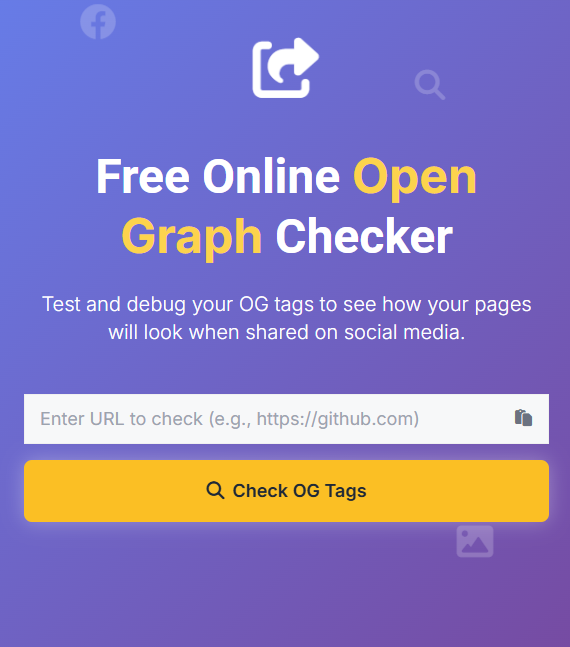
The fastest way is using Open Graph Checker at AllInOneTools — a free tool that fetches any URL and renders a visual preview of exactly how it will appear when shared, alongside the complete list of Open Graph tags found.
Step 1: Go to allinonetools.net/open-graph-checker/
Step 2: Enter the full URL you want to check — including https:// — for example: https://yourwebsite.com/your-page/
Step 3: Click the green "Check OG Tags" button
Step 4: Review the result — confirmation of how many tags were found, followed by the rendered Image Preview showing exactly what the shared link's image will look like
Step 5: Scroll through the full tag list below the preview to see the raw values for each Open Graph property
Step 6: Click "Copy All Tags" to grab the complete tag data for documentation, debugging, or sharing with a developer
Here's what a typical successful result looks like:
✅ Found 9 Open Graph tags for https://yourwebsite.com/

[Image Preview rendered here — the actual visual]

og:url              → https://yourwebsite.com/
og:site_name        → Your Brand Name
og:locale           → en_US
og:type             → website
og:title            → Your Page Title Here
og:description      → Your page description text appears here,
                       showing exactly how much fits before truncation.
og:image            → https://yourwebsite.com/images/preview.jpg
og:image:secure_url → https://yourwebsite.com/images/preview.jpg
og:image:alt        → Description of the image for accessibility
No sign-up. No installation. Completely free, works on any public URL.
What to Actually Check in the Preview
Once you have the preview rendered, here's what to look for systematically:
Does the image actually load? A blank white box or broken image icon means your og:image URL is wrong, the file was deleted, or there's a permissions issue blocking access to the image.
Is the image cropped correctly? Look at the rendered preview specifically for cropping. If your logo or key visual element is cut off at the edges, your image dimensions don't match what the platform expects — most platforms want a roughly 1.91:1 ratio, commonly 1200×630px.
Does the title match what you intended? Confirm the og:title shown is your actual intended social title — not accidentally pulling your generic page title tag if you meant to set something different for social sharing specifically.
Is the description readable and not cut off? Check the rendered description for unnatural truncation — if it ends mid-word or mid-sentence in a way that doesn't read well, your description may be too long for the platform you're optimizing for.
Does the site name look correct? Confirm og:site_name shows your actual brand name, not a default value, a staging environment name, or a placeholder that was never updated.
Common Reasons Social Previews Break
Missing Open Graph tags entirely. If the tool reports very few or zero tags found, the page simply doesn't have Open Graph markup. Social platforms fall back to guessing — usually grabbing the first image on the page (which might be a tiny icon) and the page's regular title tag.
Image file too large or wrong format. Some platforms reject preview images above certain file sizes (commonly 5–8MB) or unusual formats. If your image tag is correct but the preview shows blank, check the actual file size and format.
Relative image URLs instead of absolute. og:image must be a complete URL starting with https:// — a relative path like /images/photo.jpg without the domain often fails to render properly across different platforms.
Stale cached previews. As covered in the opening story, platforms cache Open Graph data after first scraping a URL. If you've since fixed your tags, the live preview tool shows your current correct data — but the platform's own cache may need manual refreshing (most platforms offer a debugging/cache-clearing tool for this specific purpose).
CDN or firewall blocking the crawler. Some security configurations block automated requests, including the bots that platforms use to scrape Open Graph data for previews. If your image and tags look correct in the tool but still fail on the actual platform, check whether your server is blocking social media crawler user-agents.
Conditional rendering based on user-agent. Some sites serve different content to bots versus regular browsers (for performance or other reasons). If this logic has a bug, it can accidentally serve broken or empty meta tags specifically to the crawlers that generate social previews while looking completely fine to a human visiting normally.
Checking Before vs After Publishing
Before publishing or sharing for the first time: Run the preview check on your page before any social campaign goes live, before sending a newsletter with the link, before posting anywhere. This catches problems while they're cheap and easy to fix — before any platform has cached a broken version.
After making changes to an already-shared page: If you update a page's image, title, or description after it's already been shared on social media, check the preview tool to confirm your new tags are correct. Then separately use each platform's own cache-clearing tool (Facebook's Sharing Debugger, LinkedIn's Post Inspector) to force that specific platform to re-scrape and update its cached preview — the preview checker alone won't clear platform-side caches.
Periodically for high-traffic pages: For your most important pages — homepage, key product pages, top blog posts — periodic preview checks catch issues introduced by unrelated site changes, like a CMS update that accidentally altered your default image settings.
Social Preview Checker vs Reading Tags Manually
| Approach | What You See | Catches Image Issues | Catches Truncation | Speed |
|---|---|---|---|---|
| Preview tool with image render | Visual rendering + tag list | ✅ Yes — immediately visible | ✅ Yes — see actual cutoff | ✅ Seconds |
| Viewing page source (Ctrl+U) | Raw HTML tag text only | ❌ No — can't see the image | ❌ No — just text values | ⚠️ Requires manual reading |
| Browser DevTools | Tag values in inspector | ❌ No — text only | ❌ No | ⚠️ Requires technical knowledge |
| Just trusting the tags exist | Nothing until you share | ❌ No — find out the hard way | ❌ No | ❌ Too late if wrong |
The core advantage of a visual preview tool isn't that it reads tags faster — text-based tools do that too. It's that seeing the actual rendered image catches an entire category of problems (cropping, broken links, file format issues) that are invisible when you're just reading a URL string.
Pro Tips for Reliable Social Previews
Use 1200×630px for your primary og:image. This dimension works well across Facebook, LinkedIn, and most platforms without awkward cropping. Always check the rendered preview after uploading a new image to confirm it displays as intended.
Write your og:description independently of your meta description. They can be the same, but social copy often benefits from being slightly more engaging and conversational than SEO-focused meta description text. Check the preview to make sure whichever version you've set is the one you actually want shown.
Always check immediately after a CMS or theme update. Updates can silently reset default Open Graph image settings or alter how your theme generates tags. A quick preview check after any update catches this before it affects live campaigns.
Keep the Copy All Tags output for developer handoff. If you've identified a tag problem that needs a code fix, copying the full current tag set gives your developer exact context on what's currently being output versus what needs to change.
Combine with the full Meta Tags Analyzer for complete on-page review. This tool focuses specifically on the visual social preview experience. For a complete breakdown of all your meta tags — including Title, Meta Description, Twitter Cards, and Robots directives — the Meta Tags Analyzer gives you the fuller picture. Use this preview tool for the quick "what will it actually look like" check, and the full analyzer when you need to audit everything at once.
FAQs — Real Questions About Social Link Previews
Why does my link show an old image even after I updated it? This is almost always a platform-side caching issue, not a problem with your current tags. The preview tool shows you the live, current data from your page. To force a specific platform to refresh its cached version, use that platform's dedicated debugging tool — Facebook's Sharing Debugger is the most commonly needed one, since Facebook's cache tends to be the most persistent.
Does this affect SEO rankings, or just how links look on social media? Open Graph tags specifically affect social sharing appearance — they're read by social platforms, not directly used as a Google ranking factor. However, better-looking social previews drive more clicks and shares, which can indirectly support SEO through increased traffic and engagement signals.
Why does the preview tool show tags but the actual platform shows nothing? Usually a crawler-blocking issue — some security configurations or firewalls block the specific user-agents that platforms use to scrape preview data, even though a general-purpose tool like this one can still access the page. If this happens, check your server's bot-blocking rules for entries that might be too aggressive.
Can I check how my link looks on Twitter/X specifically? Twitter/X primarily uses its own Twitter Card tags rather than relying solely on Open Graph data, though it does fall back to Open Graph tags when Twitter Card tags aren't present. This tool focuses on Open Graph rendering; for Twitter-specific card preview, check that twitter:card tags exist separately.
Is checking my own site's preview considered the same as checking anyone else's? The tool works on any publicly accessible URL — your own pages or any other public page, including competitor research into how their social previews are configured.
Is the Open Graph Preview Checker completely free? Yes. allinonetools.net/open-graph-checker/ requires no sign-up, works on any public URL, and includes the visual image preview, full tag list, and Copy All Tags feature at no cost.
Related Articles Worth Reading
These connect directly to what you've just learned:
What Are Meta Tags? How to Analyze Them Free — For the complete picture of all your page's meta tags — title, description, robots directives, and the full Open Graph and Twitter Card breakdown — beyond just the visual preview. [Read the Meta Tags guide →]
How to Find and Fix Broken Links — A broken og:image follows the same root problem as any broken link — a URL pointing to content that no longer exists or returns an error. [Read the Broken Links guide →]
What is a Redirect Checker? — If your image or page URL goes through a redirect chain, some platforms may fail to follow it correctly when generating previews. Check your redirects are clean. [Read the Redirect Checker guide →]
Conclusion
Most people only discover their social preview is broken after a link has already been shared, clicked on, and judged by an audience that saw a blank image or a description that doesn't make sense. By then the damage — lost clicks, a less professional impression, wasted ad spend — is already done.
The free Open Graph Preview Checker at allinonetools.net turns that into a 10-second check you can run before anything goes live — see the actual rendered image, confirm your title and description look right, and copy the full tag data if you need to hand it off for a fix.
Check your homepage right now. Check whatever page you're about to share next. It takes less time than reading this sentence took.
Have you ever found out a link preview was broken after it had already been shared widely? What did it turn out to be? Drop your story in the comments.
About the author
- Founder of AllInOneTools.net — building simple, free, no-login web tools that solve everyday problems. I focus on practical tools, SEO, productivity, and shipping useful software in public. Writing from real experience while building and growing AllInOneTools.
Comments
Join the discussionNo comments yet. Be the first to comment.


